PST Archive Viewer › Open a large PST file
How to open a large PST file on a Mac
Last updated 24 November 2026 · Applies to version 1.1
To open a large PST on a Mac, do not import it: use a viewer that indexes the file where it is. PST Archive Viewer is designed for Outlook archives of 40 GB and more. It reads the PST in one pass without loading it into memory, lets you read and search the indexed part while the rest is processed, and never changes the file. Reading and searching are free.
Free to open and search · macOS 12 or later, Apple Silicon · No account
Why large PST files are hard on a Mac
- Import copies everything. Outlook for Mac does not open a PST; it imports every item into its own database. A 40 GB file means hours of copying and about 40 GB more disk space.
- Large imports fail. People on Microsoft’s forums report Outlook for Mac crashing during PST import; the usual advice is to split the file in Outlook for Windows first.
- Online viewers have size caps. Most stop at a few gigabytes, and uploading tens of gigabytes of mail is slow and exposes all of it.
- Viewers that load the whole file run out of memory or search slowly, because they scan the file again for every query.
What works: index once, then search
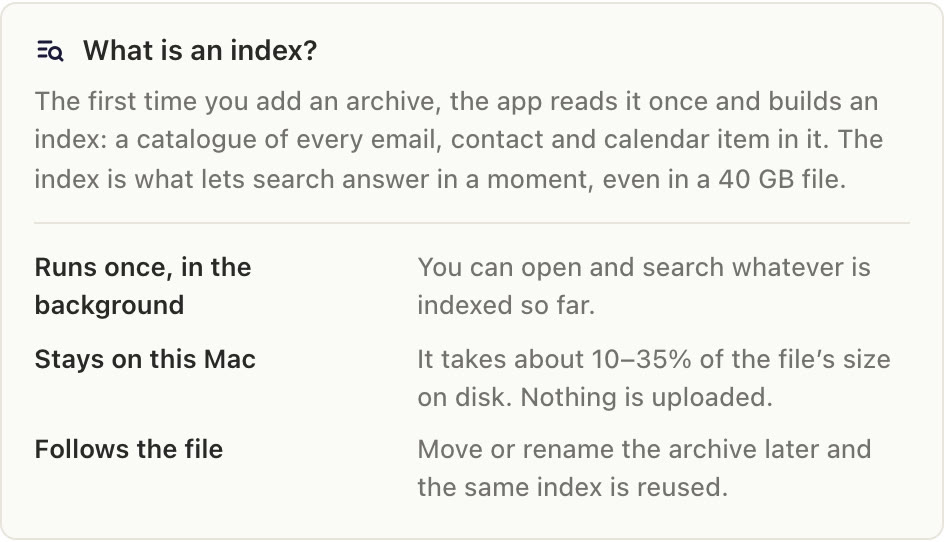
PST Archive Viewer reads the archive once, from start to end, and writes a full-text index next to it on your Mac. After that, opening the archive and searching use the index, not the PST.
- Add the PST. Drag it onto the window. It is opened read-only. The file can stay on an external drive, as long as the drive is connected.
- Let it index. A progress bar shows the percentage and the estimated time left. You can read and search what is already indexed.
- Quit whenever you want. Indexing resumes where it stopped the next time you open the app. You can also pause it.
- Move the file later if you need to. Choose Locate file… and the existing index is reused; nothing is indexed again.
How much disk space and time to plan for
The index typically takes 10 to 35 percent of the PST size, depending on how much text the mail contains. It is stored in ~/Library/Application Support/PST Archive Viewer/indexes/.
| PST size | Free space to plan for the index |
|---|---|
| 5 GB | 0.5 to 1.75 GB |
| 20 GB | 2 to 7 GB |
| 40 GB | 4 to 14 GB |
| 80 GB | 8 to 28 GB |
Indexing time depends on the speed of the disk and on how much text the archive holds: expect minutes for a few gigabytes and longer for 40 GB and more. We have not published benchmark timings yet; when we do, they will be on this page with the method and the machine used.
Tips for very large archives
- Copy the PST from a network share or a cloud-synced folder to a local disk first. Reading over the network is the slowest part.
- A fast external SSD is fine. A spinning USB drive works but indexes slowly.
- You do not need to split the file.
- If the file is damaged, indexing stops with “Indexing failed”. Repair the file with
scanpst.exeon Windows, then choose Retry.
Questions
Is there a maximum PST size?
The app sets no size limit and is designed for archives of 40 GB and more. In practice the limit is free disk space for the index, about 10 to 35 percent of the PST size.
Do I have to split a large PST before opening it?
No. PST Archive Viewer reads the file in one pass without loading it into memory, so there is no need to split it.
Can I search before indexing has finished?
Yes. Emails that are already indexed can be read and searched while the rest of the archive is processed.
Can the PST stay on an external drive?
Yes. Keep the drive connected while you use the archive. If the file moves, choose Locate file and the existing index is reused.
Does a large PST need a lot of memory?
No. The PST is read as a stream and is never loaded into memory as a whole.